An iStat Menus alternative that also acts on what it shows
Looking for an iStat Menus alternative? For pure sensor readouts, iStat Menus ($11.99) and Stats (free) are hard to beat. If you want live vitals plus the fix next to each one, here's the honest difference.


The honest answer: if you want the deepest menu-bar sensor readouts for the least money, iStat Menus (one-time, ~$11.99) or Stats (free, open-source) are hard to beat, and this guide won't pretend otherwise. But both are monitors; they show you what's happening and stop there. If you want the live vitals and the fix sitting next to each reading, that's a different tool. Here's the real distinction.
What iStat Menus is great at
iStat Menus, from Bjango, has been the reference menu-bar monitor for years. Version 7 is a one-time purchase (~$11.99 single, ~$14.99 family), no subscription, aside from an optional weather add-on. For that price you get remarkably deep, configurable readouts: CPU and GPU load, memory, disk activity, network throughput, and a rich set of hardware sensors (temperatures, fan speeds, voltages, battery detail), all in the menu bar.
If your goal is to see everything your Mac is doing in as much detail as possible, iStat Menus is superb value, and nothing here is a knock on it.
The free option: Stats
Before spending anything, know that Stats by exelban covers most of the same ground for free. It's open-source, notarized, actively developed, and puts CPU, GPU, memory, disk, network, sensors, and fans in the menu bar. For many people it's all the monitoring they'll ever need. The trade-offs versus iStat Menus are polish and breadth of configuration, not core capability.
So on pure monitoring, the field is already well served, cheaply or for free.
Where a monitor stops
Here's the gap every pure monitor shares, iStat Menus and Stats included: they tell you, but they don't act.
iStat Menus shows that a process is pinning your CPU, but you switch to Activity Monitor to kill it. It shows memory pressure climbing, but freeing it is on you. It shows the disk filling, but it can't tell you what filled it or clear any of it. Monitoring and fixing are two separate tools and two separate motions.
An alternative that closes that loop
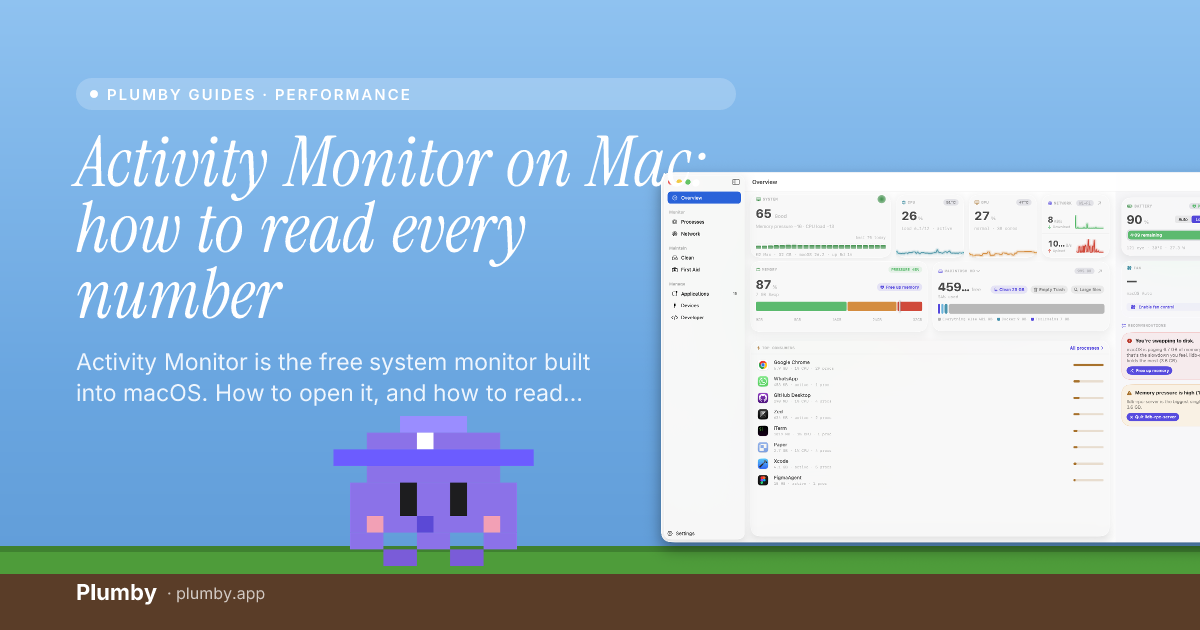
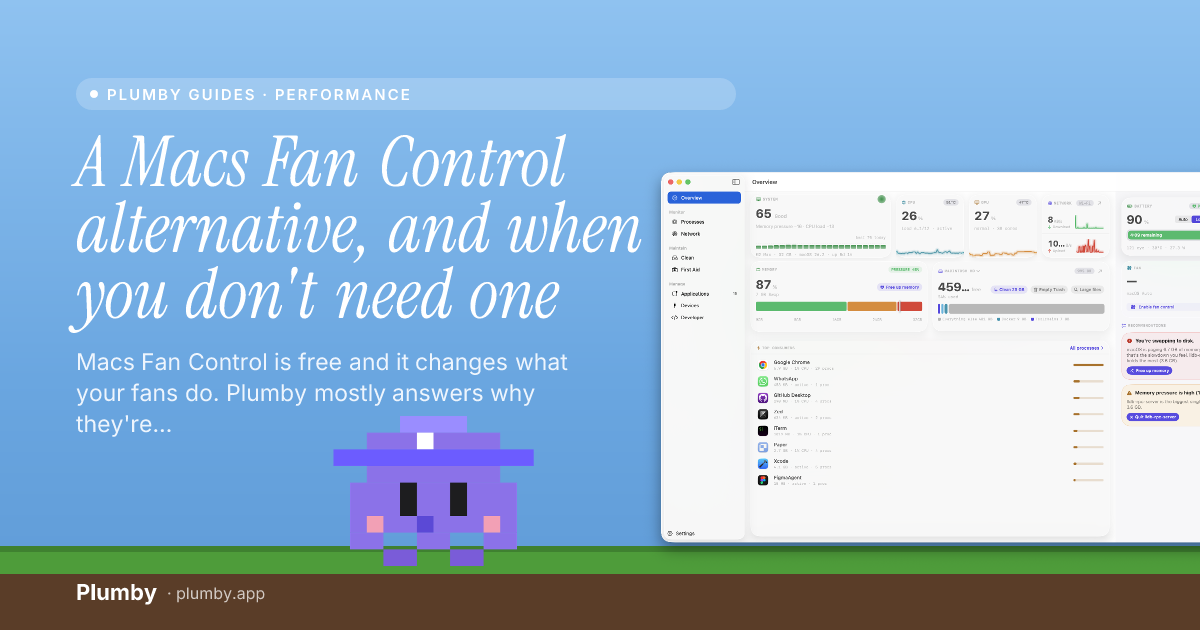
Plumby is built for the person who wants the reading and the fix in one place:
- Live vitals in the menu bar: CPU, memory, disk, network, and battery, in plain language.
- The fix next to each one. The app that's working the CPU is named and rankable, so you stop it without opening Activity Monitor. Memory pressure comes with the heaviest apps to free. The filling disk comes with what's filling it: Docker, Xcode DerivedData, node_modules, caches, sized and clearable on your command.
- It reclaims disk and manages processes and apps, which a monitor simply doesn't do.
- Everything measured, never estimated, and no telemetry; your machine's data stays on your Mac.
Honest pricing reality
Be clear-eyed about cost: iStat Menus (~$11.99) and Stats (free) are much cheaper than Plumby, because they do less; they monitor. Plumby costs more because it's also a cleaner and a process/app manager. This isn't "a cheaper iStat Menus." It's a different, broader tool.
| iStat Menus | Stats | Plumby | |
|---|---|---|---|
| Menu-bar vitals | Deepest sensor detail | Very good | Yes, plain-language |
| Acts on what it shows | No | No | Yes, the fix beside each reading |
| Reclaims disk / dev junk | No | No | Yes |
| Process & app management | No | No | Yes |
| Pricing | ~$11.99 one-time | Free | Annual or one-time |
Which to pick
- Want pure monitoring, cheaply? iStat Menus at ~$11.99, or Stats for free. Great tools; start here if all you need is to watch.
- Want the monitor and the fixes in one app? Plumby: live vitals with the action sitting right next to each number, plus the disk cleanup and process control a monitor can't do. If you're mainly trying to figure out why your Mac is hot or slow, pair this with how to monitor CPU temperature and MacBook fans loud and running hot.