Mac high CPU usage: which process is it, and is it a virus?
A process pinned at the top of Activity Monitor is almost never malware. Here's how to read the name, how to rule out a virus in one command, and what each of the usual macOS background processes is actually doing.


You opened Activity Monitor, sorted by CPU, and the name at the top means nothing to you. It looks like it might be malware. It is almost certainly not.
Most of those names belong to macOS itself, doing work it was always going to do: indexing your files, analysing your photos, checking a signature, finishing a backup. This page is the directory. Read the name, rule out the one thing everyone worries about first, then go to the page that explains your specific process.
Read the name first
Open Activity Monitor (Spotlight → "Activity Monitor"), pick the CPU tab, and click the % CPU column heading to sort by it. Whatever sits at the top is what to look up.
Two things about that number before you panic at it:
- Over 100% is normal. macOS counts each core separately, so on an eight-core Mac the ceiling is 800%. A process at 150% is using one and a half cores, not one and a half Macs.
- Duration matters more than height. A process at 200% for four minutes is doing a job. The same process at 200% for four days is stuck.
If you have not used Activity Monitor before, our walkthrough of it covers what each tab is actually telling you.
Is it a virus? Check the path, not the name
This is the real question behind almost every search that lands here, so here is the whole answer.
A genuine macOS daemon runs from a folder that System Integrity Protection keeps read-only — /usr/libexec/, /System/Library/. Nothing, including you, can write a file there on a healthy Mac. Malware that borrows a system-sounding name has no choice but to run from somewhere writable instead: your own ~/Library/LaunchAgents, /tmp, a folder in your home directory. Impersonating a trusted process name is a documented technique with a name of its own — MITRE ATT&CK tracks it as Masquerading: Masquerade Task or Service — and the path is the thing it cannot fake.
So the name proves nothing and the path proves everything. To see it, note the process's PID in Activity Monitor's second column, then in Terminal:
ps -o comm= -p 1234
Replace 1234 with the PID. It prints the exact file that process is running from. If the answer starts with /usr/libexec/ or /System/Library/, it is Apple's, it is signed, and the high CPU is a symptom of something it is being asked to do — not an infection.
If it prints a path inside your home folder for a process claiming to be a system daemon, that is worth taking seriously. macOS's own XProtect scanner is the thing already watching for that.
Find your process by name
Each of these has its own page, because the honest answer differs a lot between them.
Spotlight and the file index
- mds_stores — Spotlight writing its search index. The most common cause of a Mac that got slow for no visible reason.
- mdworker and mdworker_shared — the workers that open each file to index it. Several at once is normal.
- lsd — Launch Services, the register of which app opens which file. Usually means that register needs rebuilding.
Photos, Live Text and on-device analysis
- photoanalysisd — Photos scanning your library for faces, scenes and Memories.
- mediaanalysisd — Live Text and Visual Look Up. A different daemon from the one above, and it does not do face recognition.
Security checks
- syspolicyd — Gatekeeper, checking apps as they launch.
- trustd — certificate checks, including whether a certificate has been revoked.
Updates, backups and accounts
- softwareupdated — checking for, downloading, or installing a macOS update.
- backupd — Time Machine, mid-backup.
- accountsd — one internet account stuck in an authentication loop.
- iCloud's sync daemons —
bird,clouddandnsurlsessiond, which are all one story.
Devices, audio and sharing
- bluetoothd — the Bluetooth stack. Unusually for this list, high CPU here is not routine work.
- coreaudiod — audio. Usually another app holding the microphone open.
- sharingd — AirDrop and Handoff, often stuck on a transfer that failed.
Preferences
- cfprefsd — an app writing settings far more often than it should.
The two big ones that aren't background daemons
- kernel_task — not a runaway process at all. macOS deliberately occupying the CPU to keep heat down.
- WindowServer — the process that draws every pixel you see. Scales with screens, resolution and animation.
Not a daemon, but the most common answer of all
- Google Chrome Helper — a tab or an extension, named unhelpfully.
Why "wait it out" is so often the right answer
It is an unsatisfying answer, and it is usually the correct one. Most of the processes above are doing catch-up work with an end: indexing a drive that was just filled, analysing photos that were just imported, installing an update, finishing a first backup. Left alone with the Mac awake and plugged in, they finish and go quiet.
This is also why a macOS update makes a Mac feel slow for a day or two afterwards — several of these start at once. That pile-up has its own explainer: why a Mac is slow after an update.
When high CPU really is a problem
The cases that are worth acting on look different:
- It has been days, not minutes, with no matching activity — no import, no update, no backup running.
- The fans are loud and the Mac is hot, which is its own diagnosis: loud fans and a hot Mac.
- The battery is going in a few hours, which points at what's actually draining it.
- Everything is slow, not just one thing, in which case a single process may not be the cause at all — work through why is my Mac slow instead.
What not to do
- Don't force quit a system daemon and call it fixed. macOS relaunches its own daemons within seconds, so the CPU comes back and the work restarts from wherever it was. A reboot is the gentler, more effective version of the same idea.
- Don't disable the feature to silence the process. Turning off Spotlight, Gatekeeper or software updates trades a temporary slowdown for a permanent hole.
- Don't trust a "remove the X virus" page that never mentions the path. Every one of the processes above has such a page written about it, and the ones worth reading tell you how to check rather than what to buy.
See the name, and what it means, without the digging
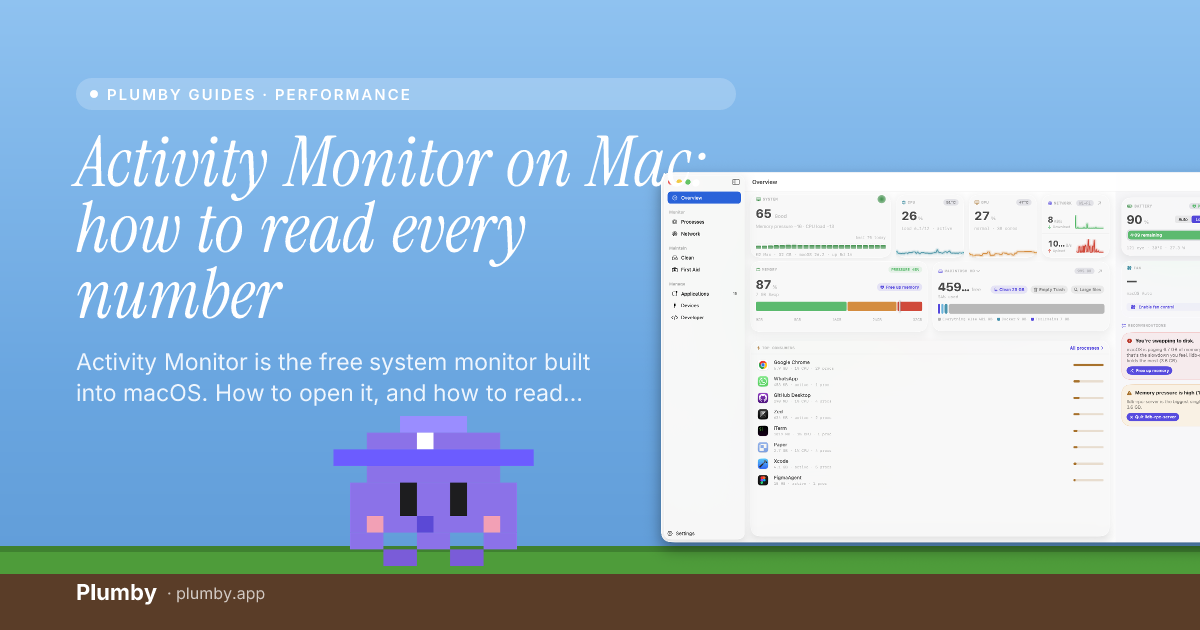
The gap this whole page exists to fill is that Activity Monitor shows you a name and nothing else. Plumby keeps live CPU in your menu bar and names what is running in plain language, with what it is doing and whether it matters beside it — so "mds_stores at 180%" reads as "Spotlight is indexing, it will finish" without a search. Every number is measured from your Mac's real state, never estimated, and nothing about your machine leaves it.